Settings
Press Ctrl + , or open the Settings menu from the application dropdown
menu to open the settings dialog.
You can use the settings dialog to control multiple parts of the application.
Application
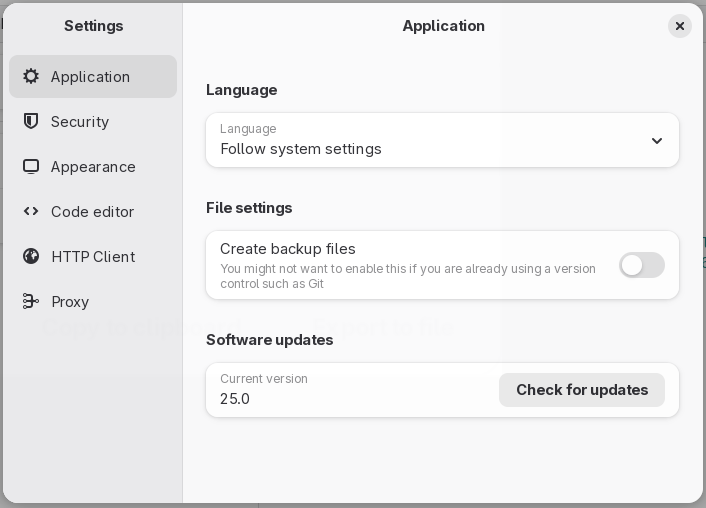
The following options are available:
Language:
- Language: Cartero will try to use your system language by default. If the language was not picked correctly, or if you want to override, you can switch to a different language. You will have to restart Cartero. You can contribute translations through Weblate.
File settings:
- Create backup files: if enabled, every time you save a request file, the older version of the file will be saved into a backup file before being overwritten by the new changes. This option is not very useful when you already have your own backup system in use, such as a version control system.
Software updates:
- Check for updates: press this button to query if there is a new version of Cartero that you can download and install.
Pressing the Check for updates button will trigger an HTTP request to the
GitHub API. The exact endpoint that will be queried will be
https://api.github.com/repos/danirod/cartero/releases/latest. The
privacy policy of GitHub may apply.
Security
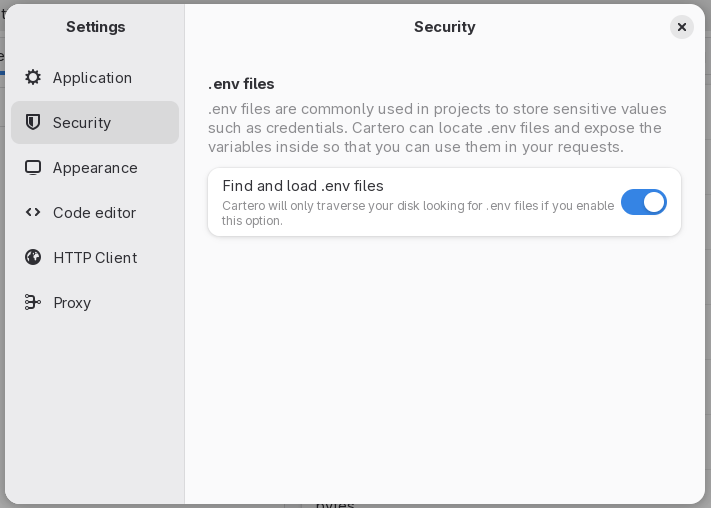
These options control additional security settings that can be used to enable dangerous actions.
.env files:
- Find and load .env files: Cartero will only find and read .env files to use the variables within the requests if this option is enabled.
Appearance
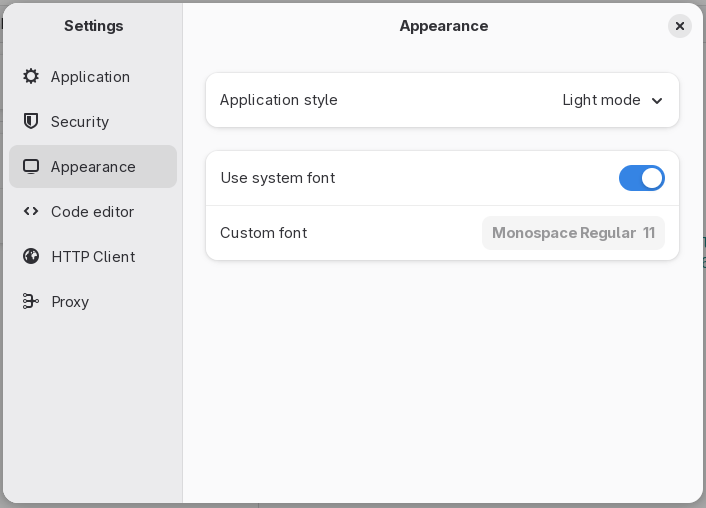
Control how the application looks.
- Application style: set the theme to light, dark, or use the global style defined by the settings of your operating system.
- Use system font: when enabled, Cartero will use the default monospace font of your system for the code view text editors, such as the response view or the request body view.
- Custom font: when you disable the use system font toggle, you can set the font family and size that you want to use to render the code view editors.
Code editor
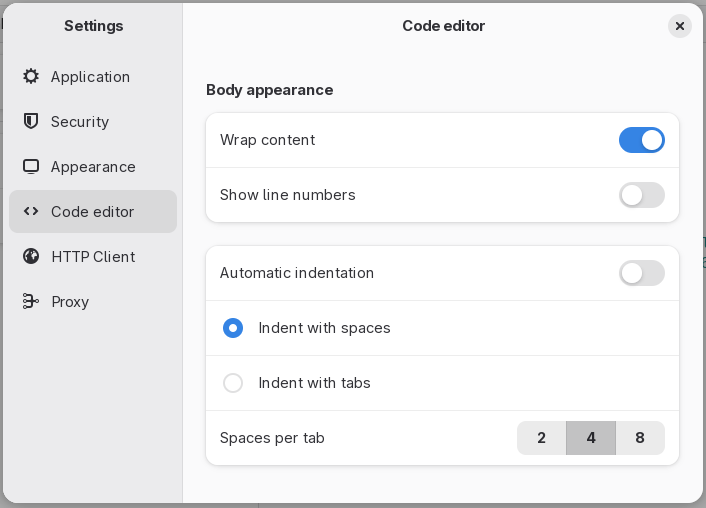
These options control how the code editors present in the request body raw payload editor behave. They also influentiate how the response bodies look, even if the response body is not editable.
Body appearance:
- Wrap content: if this option is enabled, long lines will be split in multiple lines. If the option is disabled, you will have to horizontally scroll to read long lines.
- Show line numbers: puts the typical line number counter that you see in most code editors in the editor gutter.
- Automatic indentation: if you enable this option, the code editor will indent new lines based on the indentation settings of the previous line.
- Indent with spaces / Indent with tabs: What do you want to insert to the payload then the Tab key is pressed.
- Spaces per tab: either how many spaces should be inserted when pressing Tab, or how wide should the tabulator be.
HTTP Client
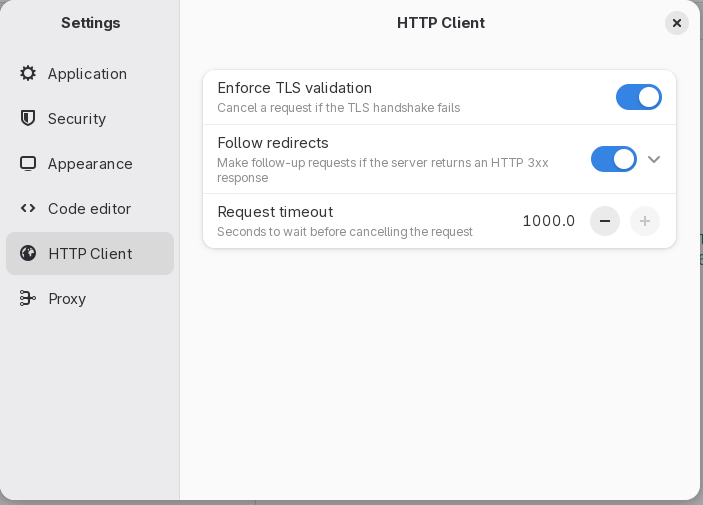
The following options are available under the HTTP client section:
- Enforce TLS validation: Cartero will present an error message if the TLS handshake goes wrong. Disable this to continue the request, even when the certificate is not valid.
- Follow redirects: if enabled, Cartero will not stop at an HTTP 301, 302,
307 or 308 response code. Instead, it will look for the next URL in the
Locationheader and send a new HTTP request. Note that there is a limit to prevent infinite lookups, that can be configured using the Maximum redirects control that appears when enabled. - Request timeout: configure the maximum time that Cartero will wait for the response to be received until it bails out and timeouts the whole request. Units are seconds. If your endpoint is slow and takes some time to process, you might want to bump this value. The maximum value right now is 1000.0 seconds.
Proxy settings
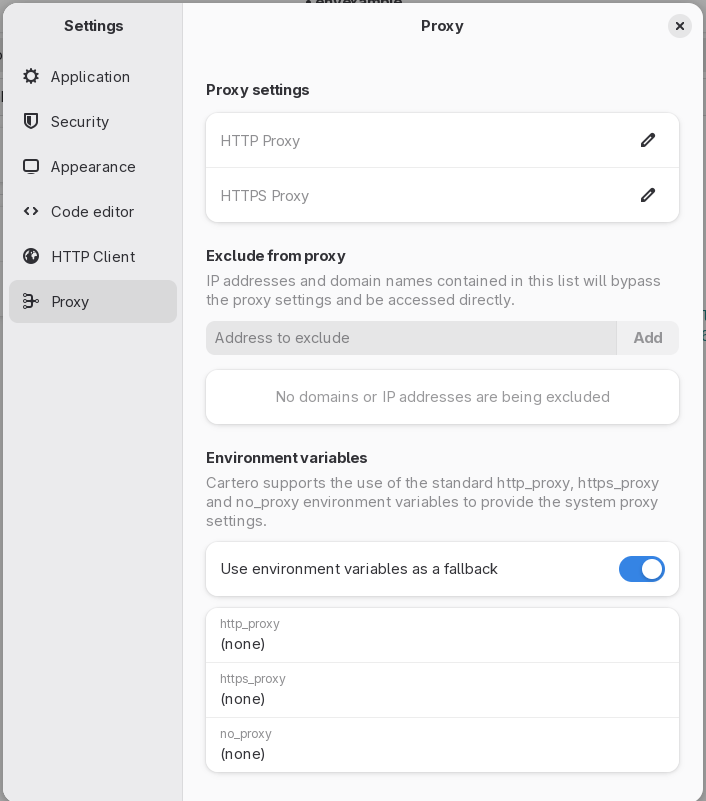
- HTTP Proxy: specify the proxy to use for HTTP requests. This proxy will NOT be used by HTTPS requests.
- HTTPS Proxy: specify the proxy to use for HTTPS requests. This proxy will NOT be used by HTTP requests.
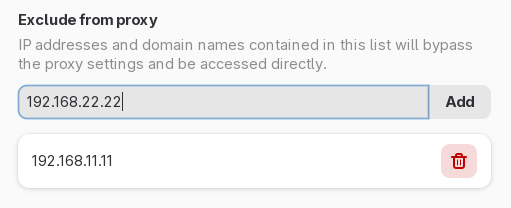
- Exclude from proxy: this is a list of sites that will not pass through the
proxies. Requests will be made directly to the site. To add a site, type the address
into the "Address to exclude" control, and then press the Add button. To delete a
previously added excluded site, click the trash can button near the address.
- Use environment variables as a fallback: If the proxy options are empty in
Cartero, it will read the settings from the environment variables if this
option is enabled. Cartero supports the use of the standard
http_proxy,https_proxyandno_proxyenvironment variables used by curl. Read the curl docs for more information.
Under development
Future ideas that will be available here:
- Application color schemes: to use a different color for your windows, or to provide additional color schemes for the text editors.
- Authorized hosts: an extra security layer that will make Cartero ask for confirmation before sending an HTTP request, unless the hostname of the request is added to a trusted hostname list.
- Client certificates: a special kind of certificate validation used in the corporate world.